6. How to Make a Reservation
Now that we have added some room types, room rates, rooms or beds and guests, we can follow these simple steps to make a reservation:
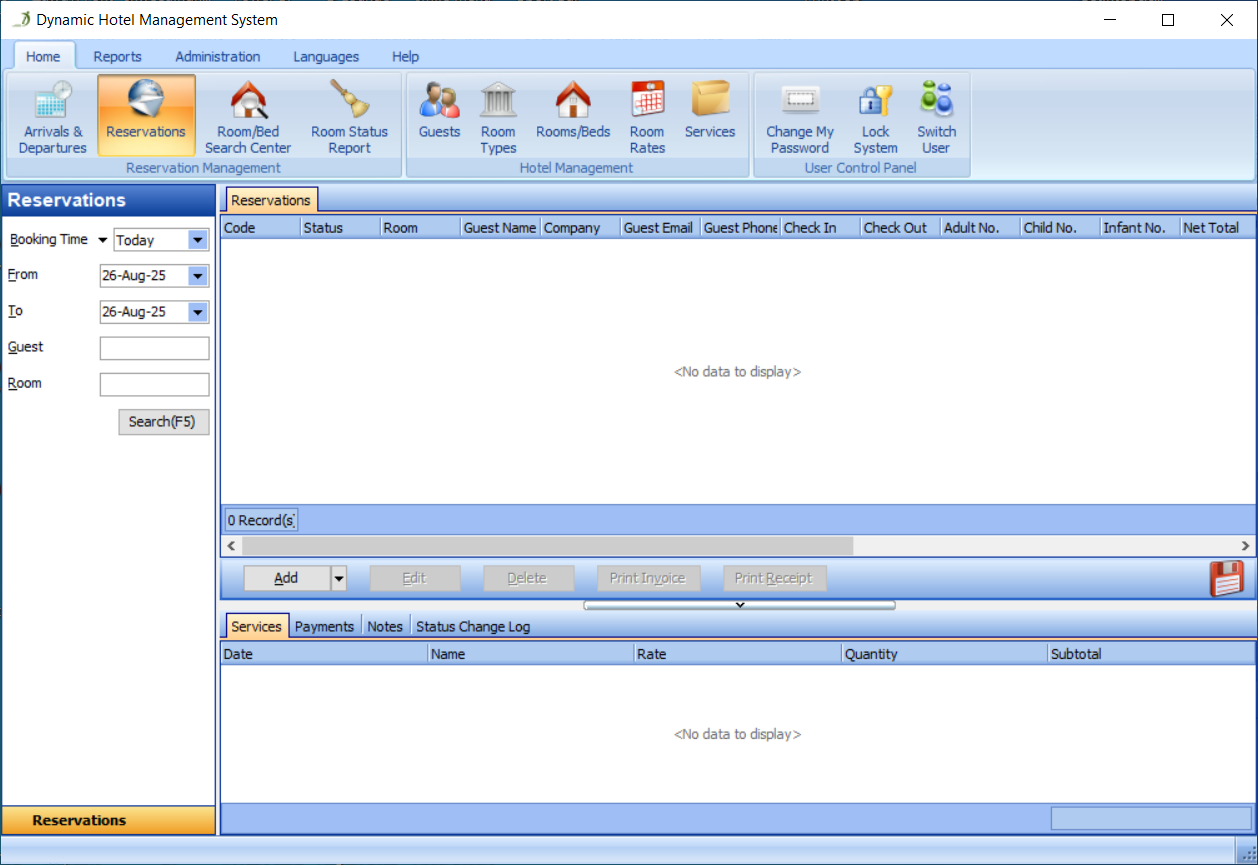
Go to the Reservations section, as shown in Figure 31:
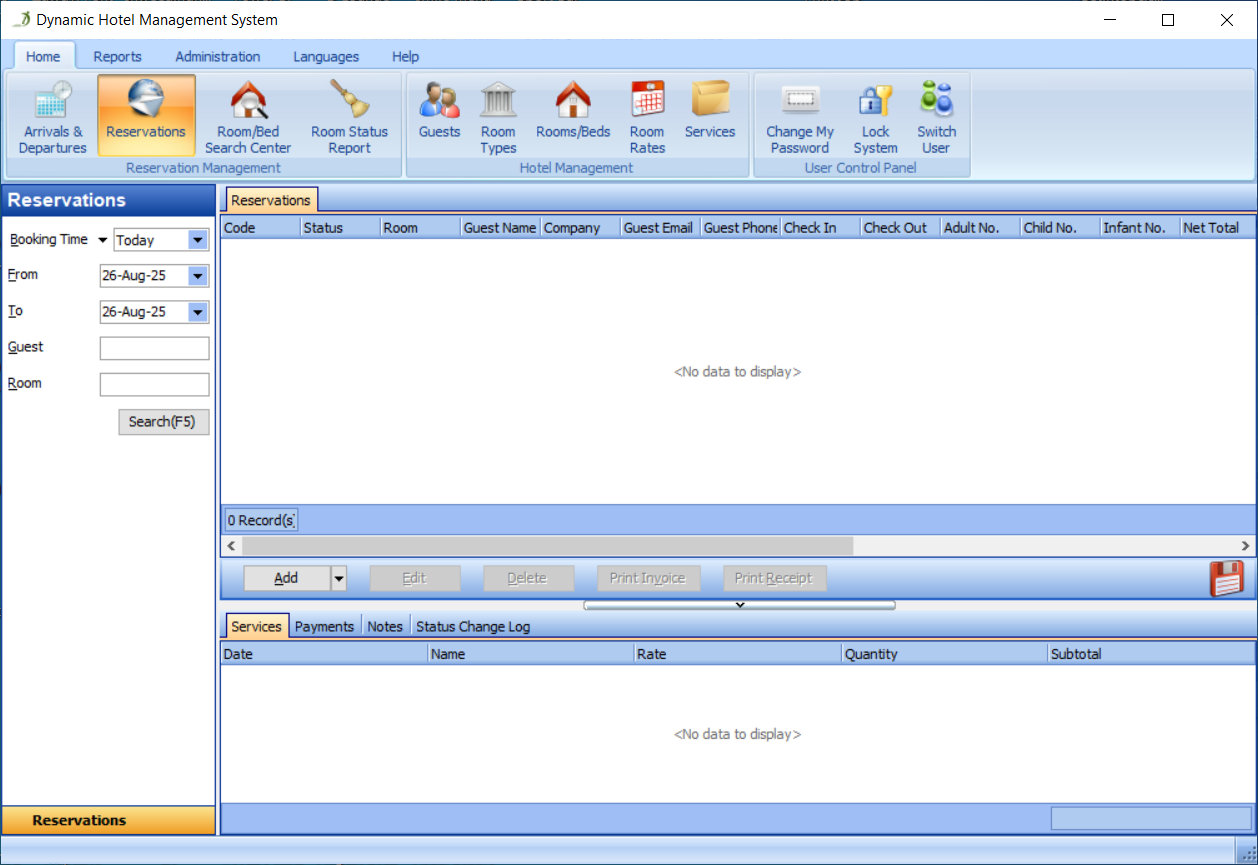
Click the Add button in the Reservations panel, as shown in Figure 32:
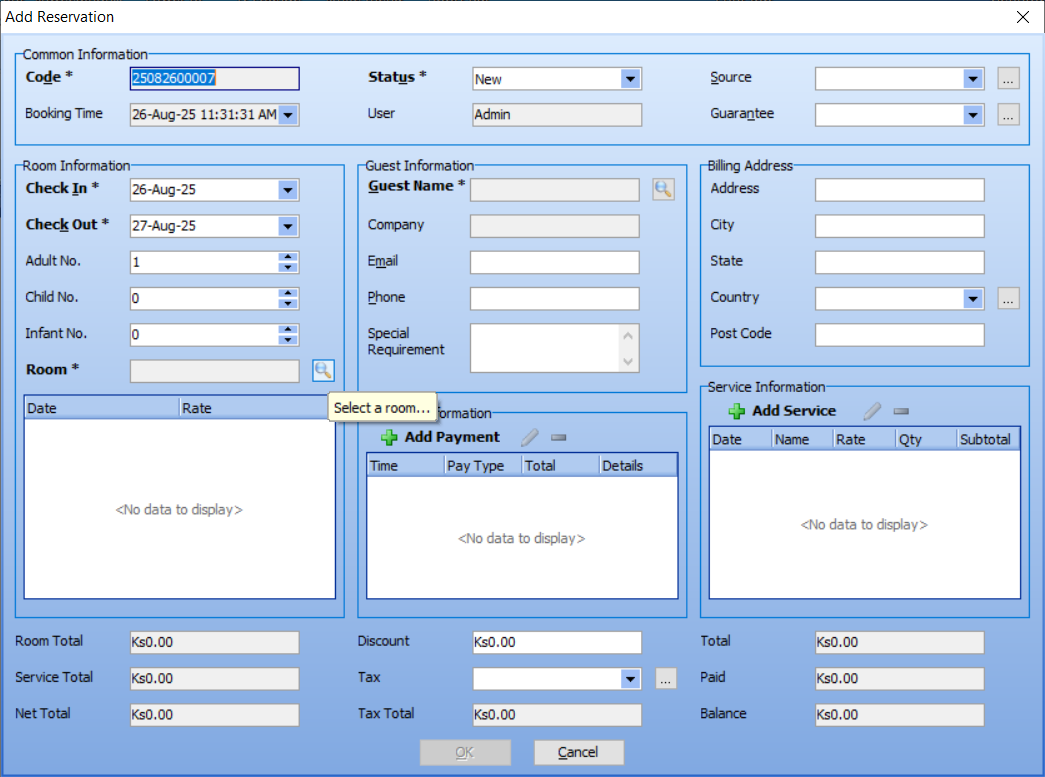
Click the button next to the Room Edit Box, as shown in Figure 33:
Select a room in the 'Select a room' dialog, as shown in Figure 34:
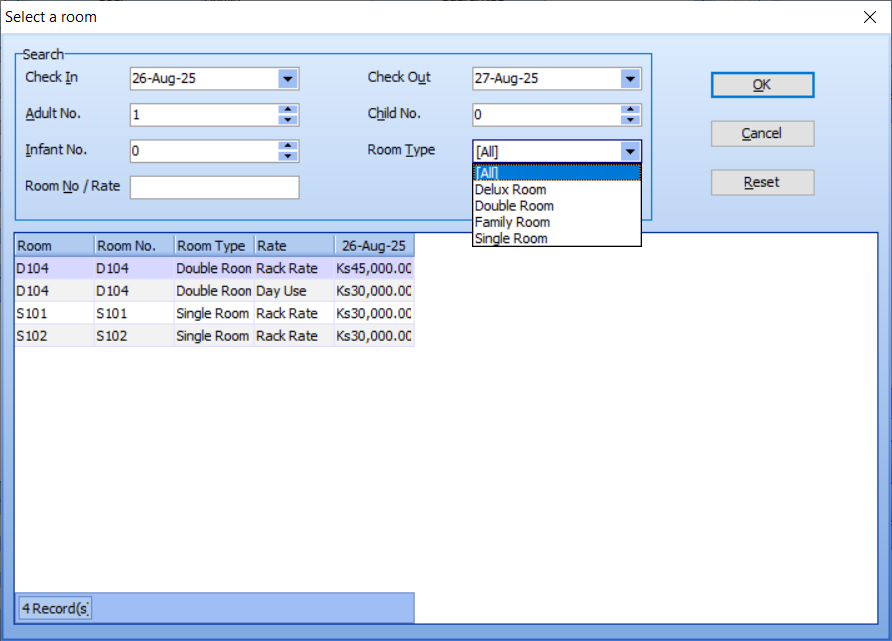
Then, click the OK button in the Select a room dialog. The room will be automatically filled into the reservation, as shown in Figure 35:
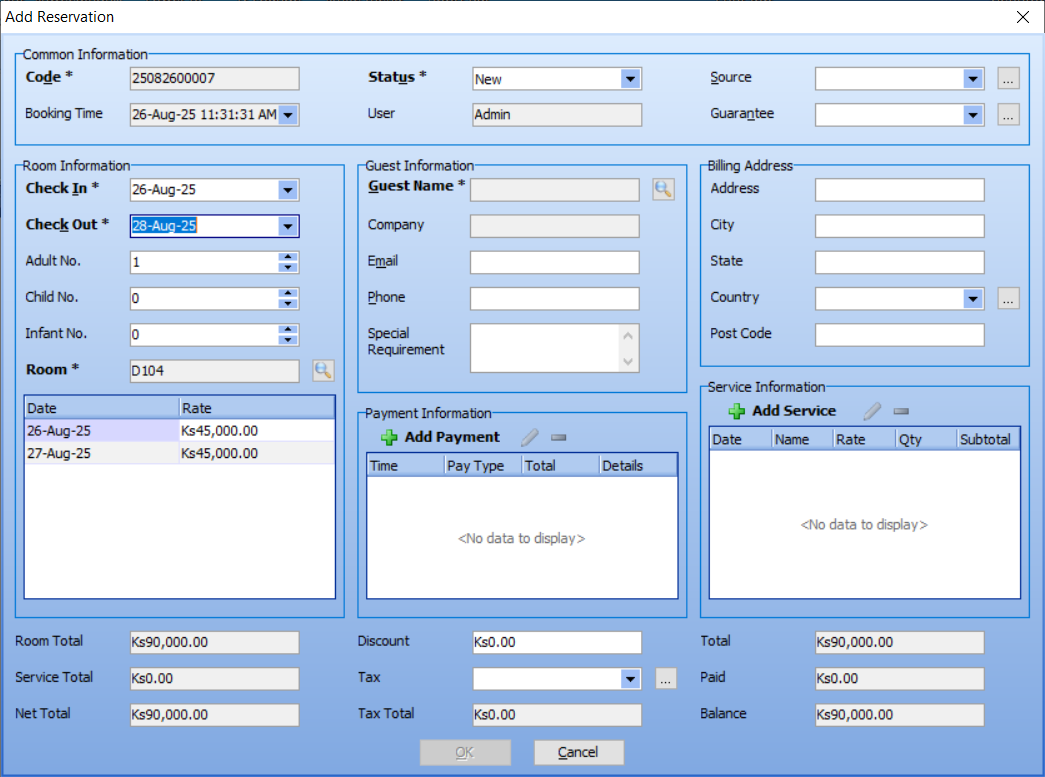
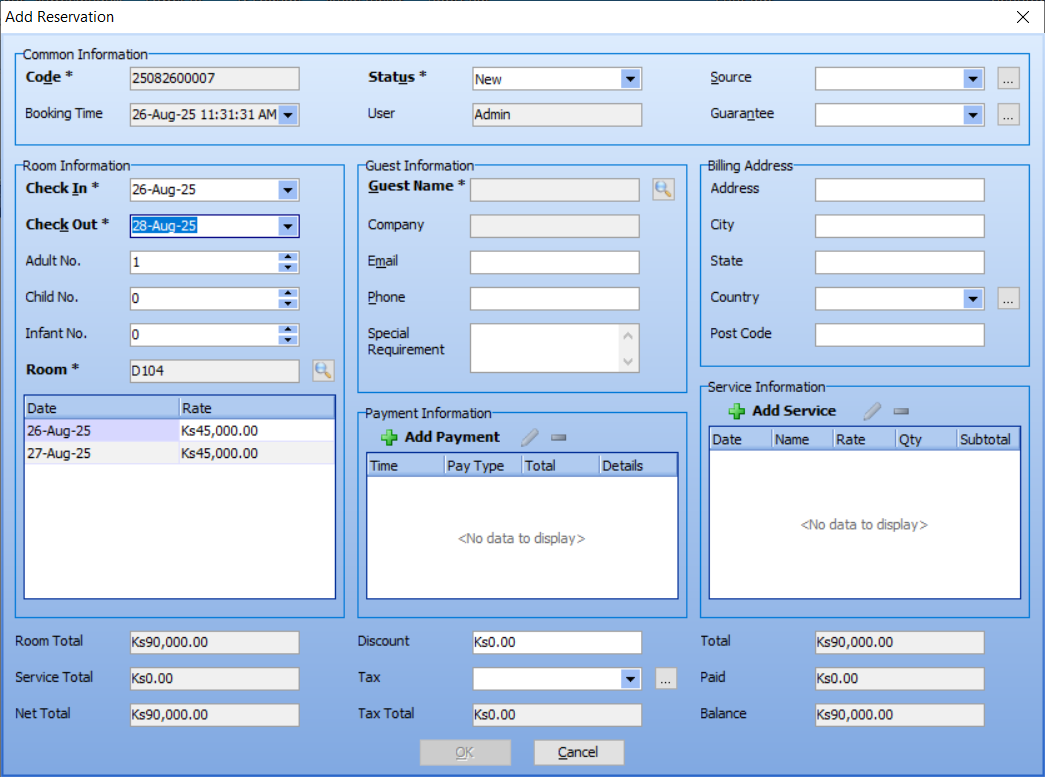
Click the button next to the Guest Name Edit Box, as shown in Figure 36:
Select a guest in the Select a Guest dialog, as shown in Figure 37:
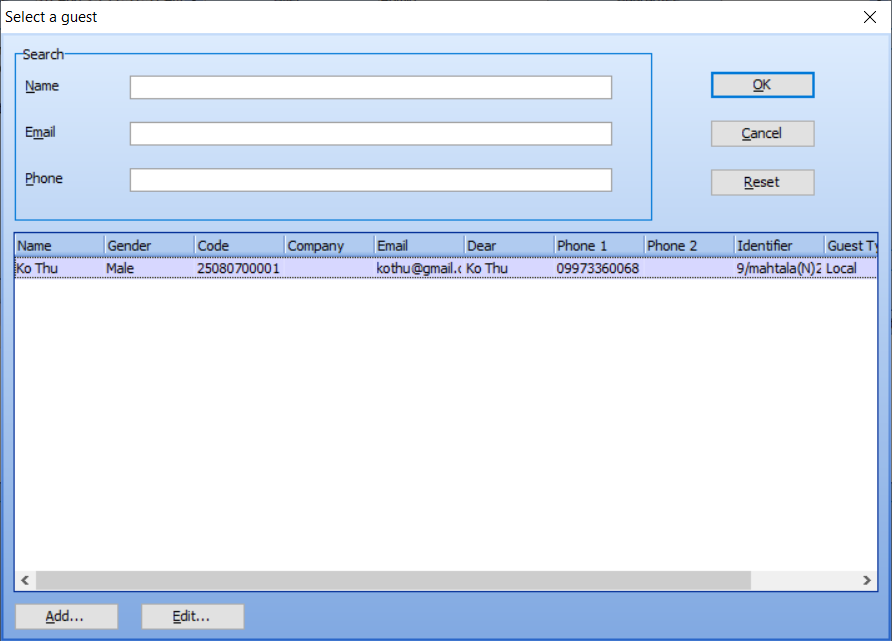
And then, click the OK button in the Select a Guest dialog. The guest will be automatically filled into the reservation, as shown in Figure 38:
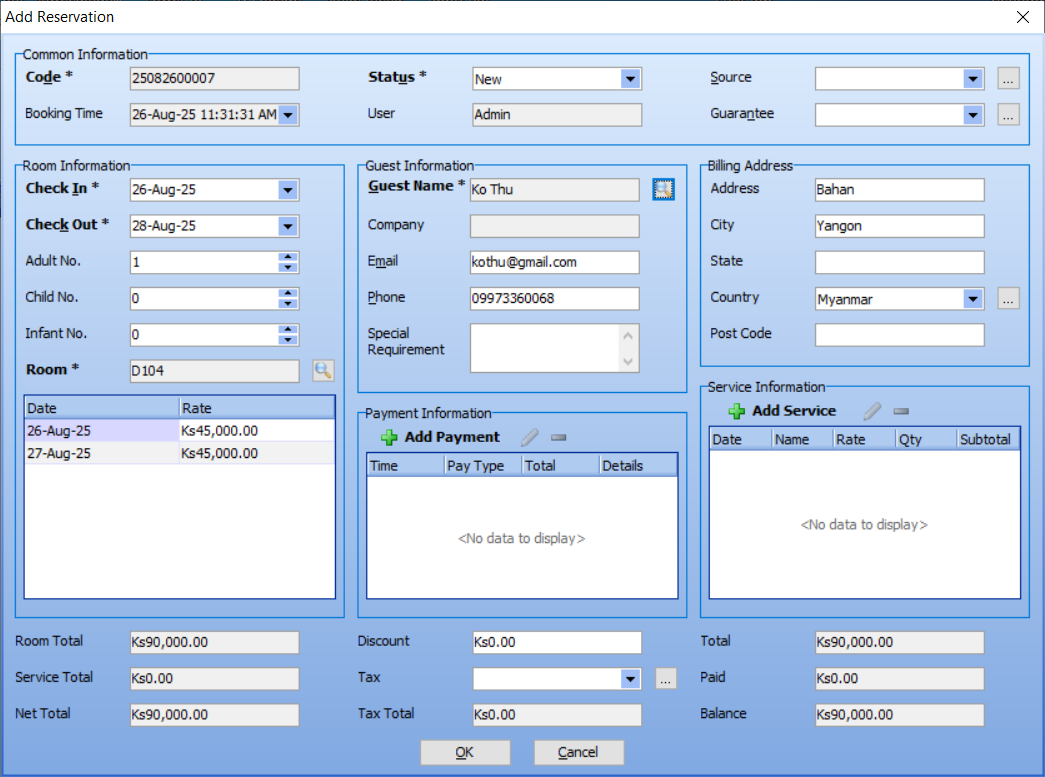
There is no default tax in the system. You can follow these simple steps to add some tax rates:
- Click the button next to the Tax Edit Box
- Click the Add button in the Tax Ratio dialog
- Enter a tax rate in the Add Tax Ratio dialog
Then, you can select a tax rate, as shown in Figure 39:
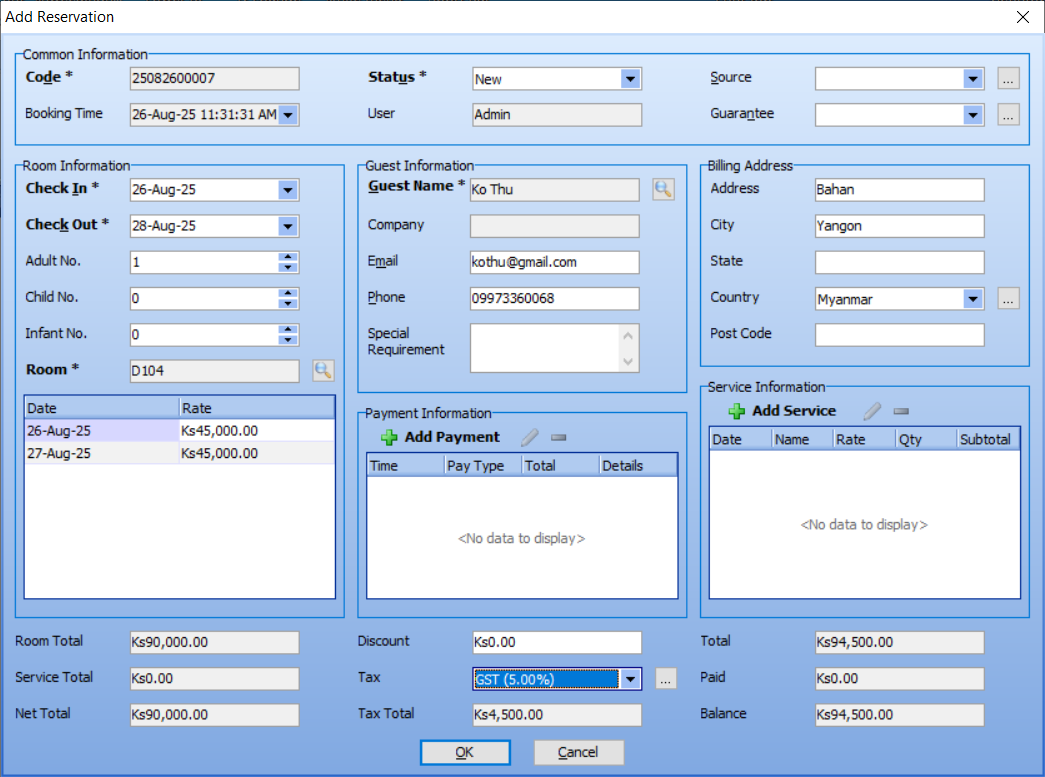
Then, you can click the OK button to save the reservation. You will see the reservation appear in the Reservation List, as shown in Figure 40:
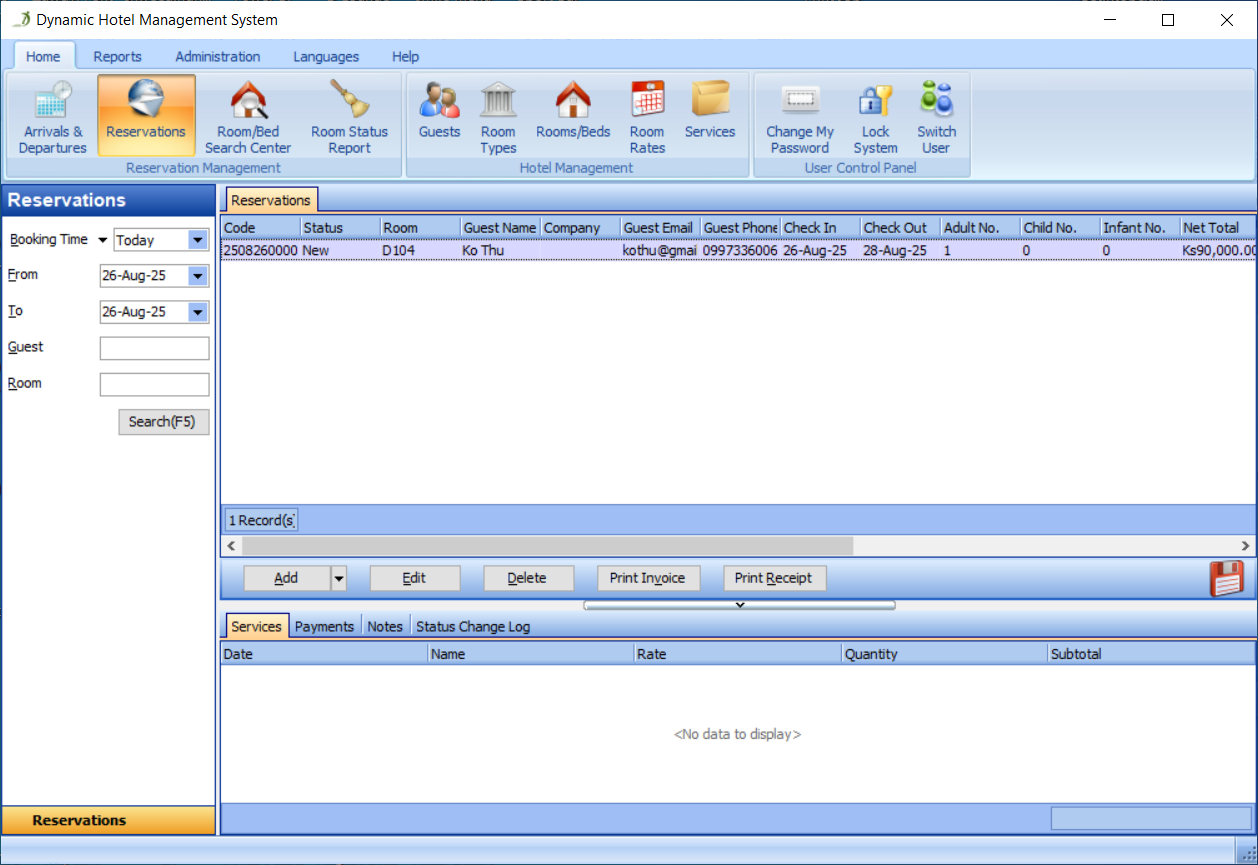
Finally, you can click the Edit button to modify this reservation, or click the Delete button to remove this reservation.
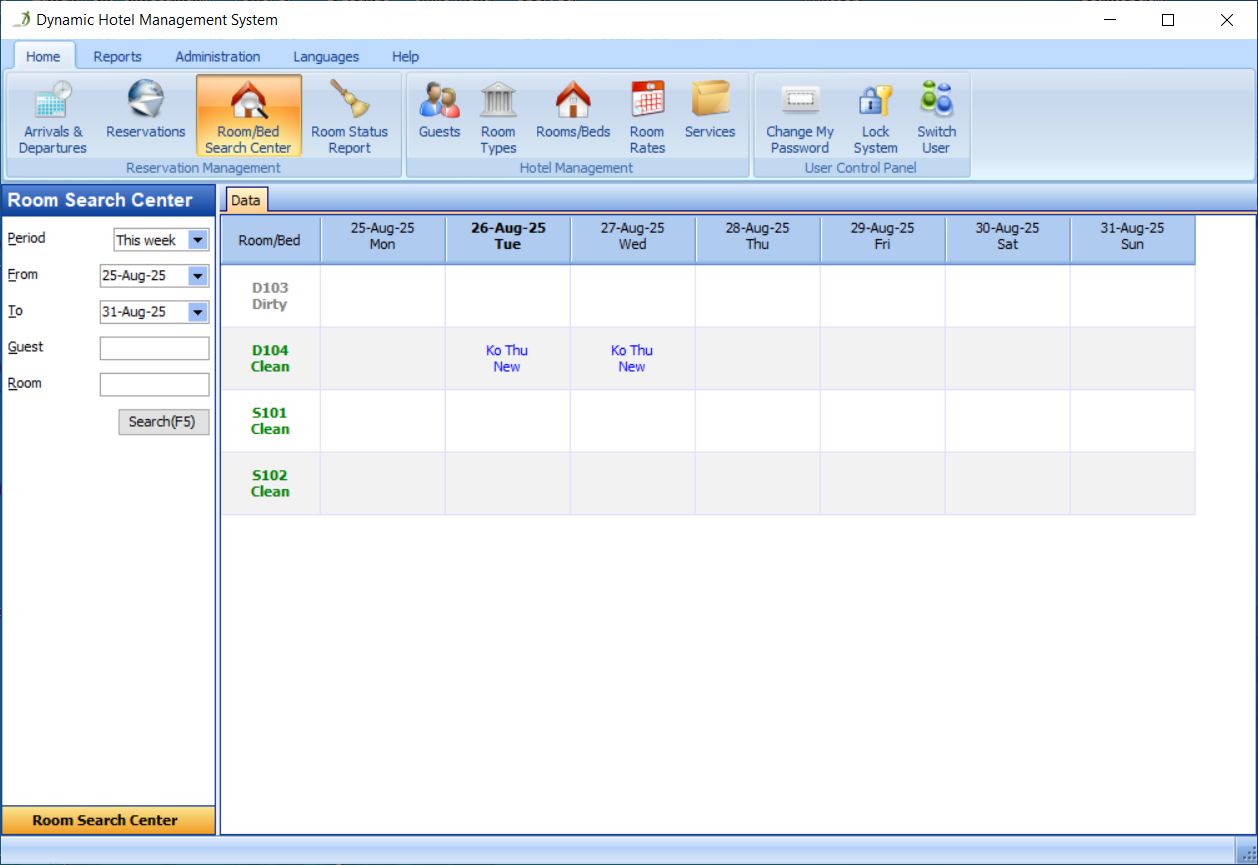
You can go to the Room/Bed Search Center section to check the occupancy status of rooms/beds in your hotel, as shown in Figure 41: