2. How to Set Up a Room Type
After logging into the system, the first task is to set up all the room types for your hotel. Simply follow these easy steps to set up your room types:
Go to the Room Types section, as shown in Figure 2:
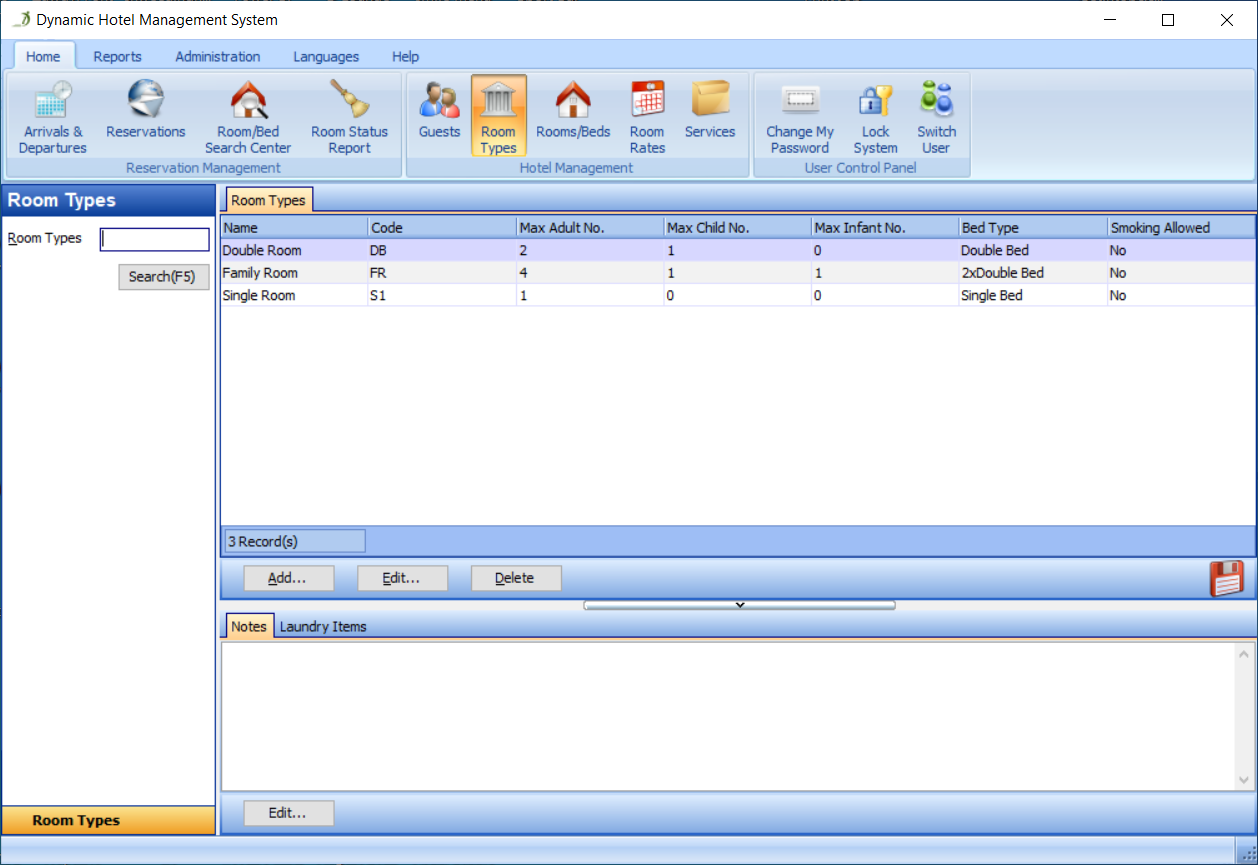
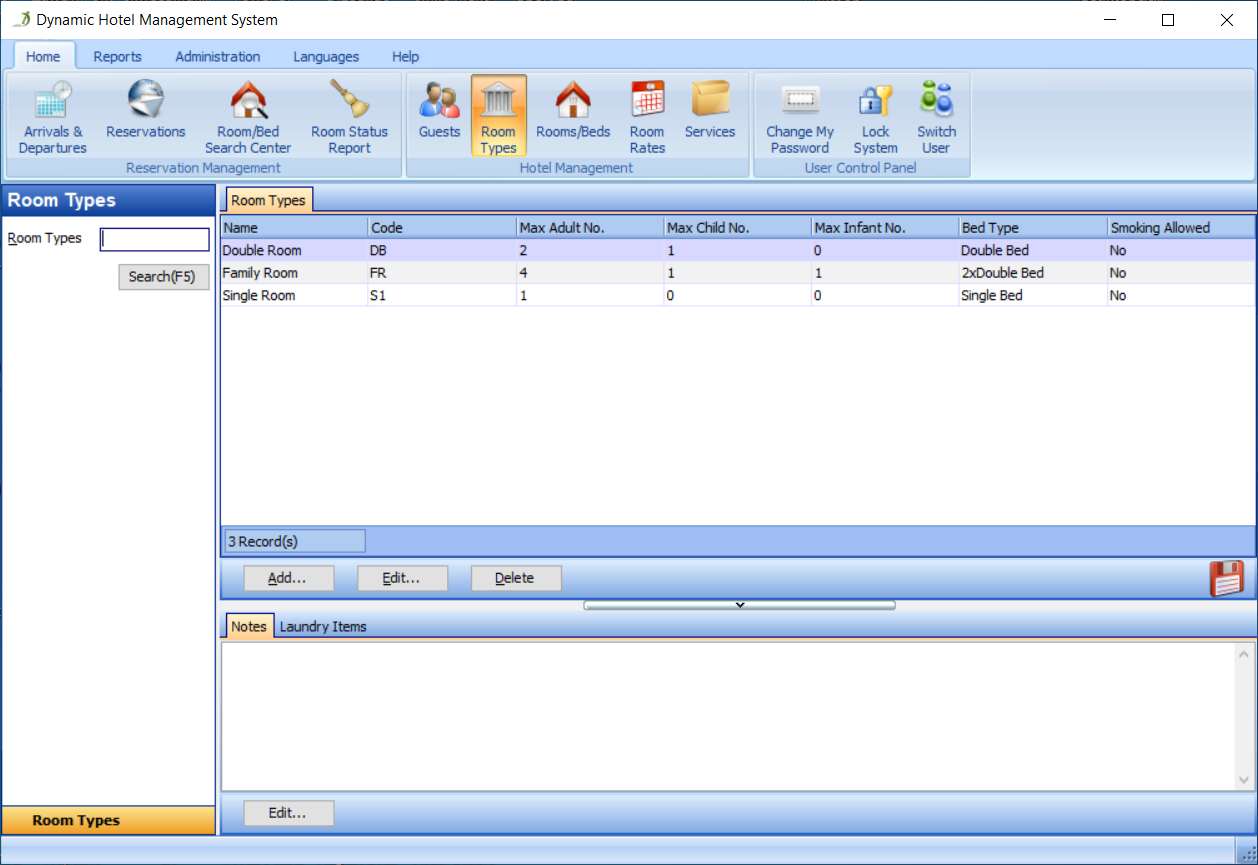
Click the Add button to open the Add Room Type dialog, as shown in Figure 3:
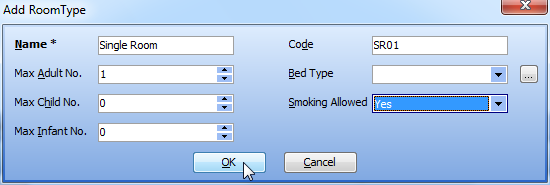
You can fill in all the fields in the Add Room Type dialog, as shown in Figure 4:
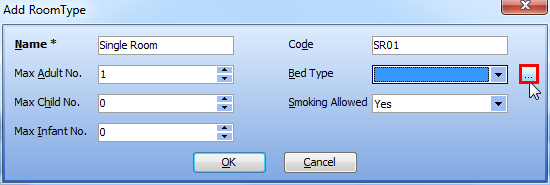
If there is no default bed type in your system, and you want to add bed types, click the button next to the Bed Type edit box, as shown in Figure 5:
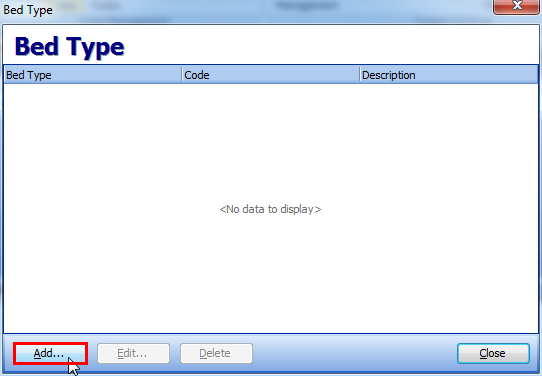
Click the Add button in the Bed Type dialog to add a bed type, as shown in Figure 6:
Next, enter all the fields in the Add Bed Type dialog, as shown in Figure 7:
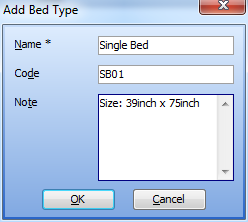
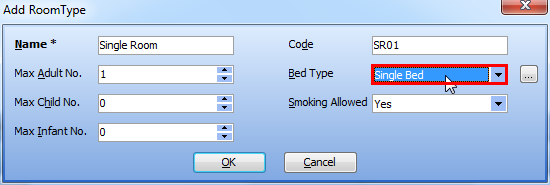
Then, click the OK button in the Add Bed Type dialog and the Close button in the Bed Type dialog. After that, you can select the bed type 'Single Bed' for the room type 'Single Room', as shown in Figure 8:
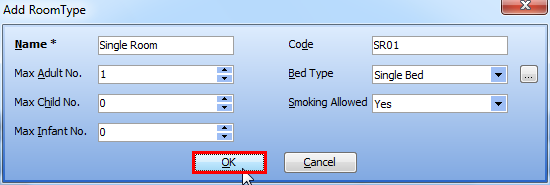
Click the OK button in the Add Room Type dialog, as shown in Figure 9:
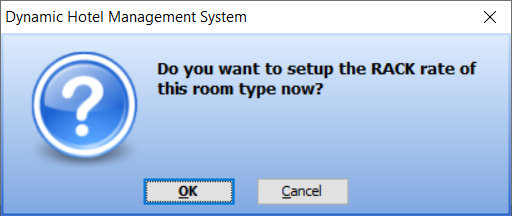
Then, You will see the following dialog. You can click its OK button to set up the RACK rate for your room type:
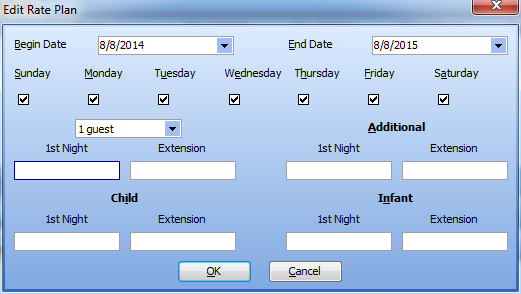
When you click the OK button on the RACK rate confirmation dialog, you will see the following dialog:
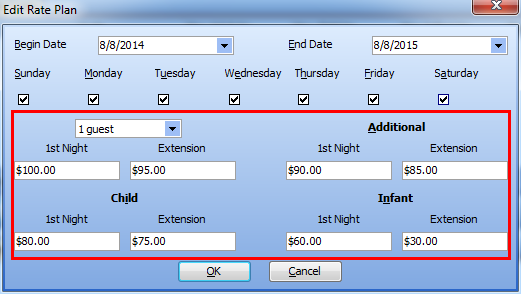
You can enter the Rack rate for your room type, as shown in the following figure:
Then, click the OK button, and wait a moment, as this action generates rate data for one year (From 2014-08-08 To 2015-08-08).
The room type 'Single Room' has been added to the system. You can find it in the room type list, as shown in Figure 13:
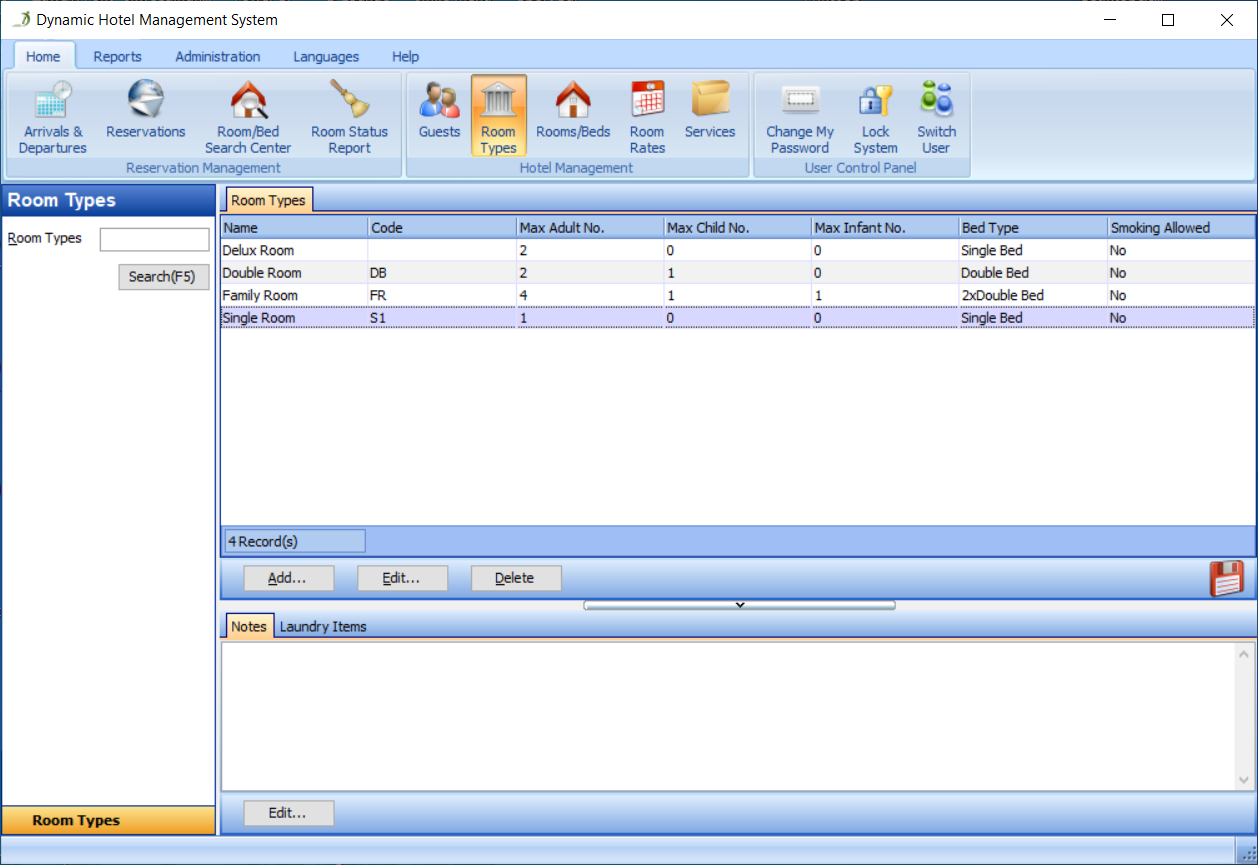
You can click the Edit button to modify your room type, or the Delete button to remove the selected room type.